Documentation & support

Help Center

Answers, guides and explanations for every Bilanzo feature.

No results found

Try different search terms or pick a category.

Getting started

Everything you need to get going with Bilanzo.

Bilanzo is AI-assisted accounting software for Swiss SMEs and sole proprietors. It reads, categorises and posts your receipts, prepares VAT returns and gets your annual accounts ready.

Bilanzo runs locally on your own computer. Your receipts, bookings and client data stay there. The only things that leave your machine are the licence check, the update query, the official daily exchange rates and the integrations you connect yourself.
Bilanzo is aimed at:

  • self-employed people and sole proprietors
  • SMEs with up to roughly 50 employees
  • fiduciary offices looking after several clients
  • startups looking for affordable bookkeeping

Bilanzo is not designed for large groups with complex consolidation requirements.

The trial is limited to 100 receipts and 10 bank reconciliations. There is no time limit.

Receipt processing is fully available during the trial: AI categorisation, VAT calculation and PDF export. Only once the limits are used up does the account switch to "Expired" and you take out a subscription.

Training the model with your own corrections earns additional bonus receipts.

After registering you receive a confirmation e-mail. Then:

  1. Download Bilanzo Local from /download
  2. Install it; at the end the browser opens the setup wizard by itself
  3. Set an e-mail address and password, then sign in
  4. Create your first company profile (company name, UID, VAT number)
  5. Upload your first receipt and check the AI categorisation
On first launch Bilanzo needs internet access once, for the licence check. You can skip bexio and ePost in the wizard and add them later.

On the computer the launcher opens the browser for you. If the window stays empty, type http://localhost:3100 by hand.

Stay on that address. Sign-in is tied to the origin: if you open the same installation under a different name, the session cookie does not apply there and sign-in fails.

The name bilanzo.local exists for phones only. It is meant for capturing receipts with your phone, so that pairing and queued captures have a stable name instead of a changing IP address.

There is no dedicated iOS or Android app. Bilanzo Local runs on your Windows machine and is operated in the browser.

You can still photograph receipts with your phone: the phone is paired with your installation once, then opens the capture page at bilanzo.local on the same network. Captures not yet transferred wait on the device until it has a connection again.

On bilanzo.ch you manage your customer account, your subscription and your downloads.

Installation & setup

Step by step to a running installation.

  1. Download the installer from /download
  2. Run it (if Windows Defender SmartScreen appears, choose "Run anyway")
  3. The wizard first checks the machine, then sets up the services and downloads the missing components
  4. At the end the browser opens with the setup wizard
Bilanzo requires Windows 10 (build 1809 or newer) or Windows 11, 64-bit in each case. Leave the launcher window open while it works.

Plan for roughly ten minutes at the screen. You need no command line and no prior knowledge.

The individual steps:

  • checking the machine: about twenty seconds
  • setting up the services: a few minutes
  • downloading the missing components: a few minutes, depending on your connection
The package is several gigabytes. On a slow line the download step takes correspondingly longer; we deliberately do not quote a fixed figure. Leave the window open during that time.

A macOS build is in progress. There is no download for it yet.

Bilanzo Local currently runs on Windows 10 (build 1809 or newer) and Windows 11, 64-bit in each case.

On first launch you fill in the company profile:

  • Company name: as in the commercial register
  • UID: CHE-xxx.xxx.xxx (optional for sole proprietors without a register entry)
  • VAT number: the UID plus the VAT suffix
  • VAT accounting method: effective or net tax rate / flat rate
  • Financial year: start and end (default: 1 January to 31 December)

No. bexio is an integration, not a prerequisite. You can skip the step in the setup wizard and add it later; setup counts as complete without bexio.

In that case sign in with e-mail and password rather than "Sign in with bexio".

If you do run bexio, the integration adds two things: the bexio AI analysis of your existing books, and a path to hand prepared bookings over to bexio.

Yes. Bilanzo runs several clients side by side. The Standard plan includes up to 3 clients, the Professional plan up to 10. Each further client costs CHF 50 per month.

Every client has its own receipts, accounts, VAT returns and reports. The separation sits at database level: no client sees another one’s data.

Bilanzo supports the ISO 20022 standard used by Swiss banks. You can:

  • import statements as CAMT.053 or MT940
  • export payment instructions via PAIN.001

There is no direct open-banking (eBanking API) connection.

PostFinance, UBS, Raiffeisen, ZKB and most Swiss cantonal banks export CAMT.053 from their eBanking.

Receipts

Capturing, categorising and managing receipts.

Bilanzo accepts:

  • PDF (preferred, multi-page invoices included)
  • JPG / JPEG
  • PNG
  • TIFF
  • HEIC (iPhone photos)

Maximum file size: 25 MB per receipt. Recommendation: scan at 200 dpi or better for the best OCR results.

There are several ways:

  1. Drag and drop: pull the file straight into the receipts window
  2. The "Add" button: pick the file from the file dialog
  3. Direct scanner import: WIA/TWAIN-capable scanners are detected
  4. Phone: photograph the receipt with the paired phone

After upload the AI processes the receipt and places it in the review queue.

Click the receipt in question and edit these fields:

  • account (Swiss SME chart of accounts)
  • VAT rate
  • date and amount (where recognition got it wrong)
  • description / purpose

Your corrections are learned locally and improve the suggestions for future receipts from the same supplier.

Yes, as long as the corresponding period is not yet closed. Closed periods are write-protected.

Deleted receipts are gone for good. Create a backup under Settings > Backup before deleting.

Bilanzo recognises multi-line receipts. You can assign each item to a different account ("split"). The AI proposes an account per line; you confirm or correct it.

Bilanzo automatically fetches the official daily VAT exchange rates of the Federal Tax Administration (ESTV), falling back on the rates of the Federal Office for Customs and Border Security (BAZG). For foreign-currency receipts the CHF equivalent is calculated and shown on the posting record. The booking currency is always CHF.

Bookkeeping & VAT

Chart of accounts, VAT returns and annual accounts.

Bilanzo is based on the Swiss SME chart of accounts (KR KMU), which is widely used in Switzerland. All accounts come pre-loaded.

You can add your own accounts or rename existing ones. Mandatory accounts for VAT and the annual accounts cannot be deleted.

Current Swiss VAT rates (in force since 1 January 2024):

  • 8.1% standard rate
  • 3.8% special rate (accommodation)
  • 2.6% reduced rate (food, medicines, books, newspapers)
  • 0% exempt from VAT
  • 0% not taxable

Older rates (before 2024: 7.7% / 3.7% / 2.5%) remain available for historical entries.

Under VAT > Create return:

  1. Choose the period (quarterly or half-yearly)
  2. Bilanzo fills the boxes of the return form from the period’s entries
  3. Check the return box by box and export it as PDF
  4. Mark the return as "submitted" (this locks the period)
Bilanzo uses the effective method. The net tax rate method is in progress.
Check the return before you submit it. Responsibility for the figures submitted lies with you or your fiduciary; Bilanzo prepares, it does not sign.

Agreed consideration (default): VAT falls due when the invoice is issued, regardless of payment.

Collected consideration: VAT falls due only when payment arrives. Under art. 39 VAT Act the law provides for accounting on agreed consideration; the ESTV authorises accounting on collected consideration on request. There is no turnover threshold for it. The chosen method must be kept for at least one tax period.

Bilanzo currently accounts on agreed consideration.

Under Annual accounts > New closing:

  1. Post all outstanding receipts
  2. Run the reconciliations (bank, payables, receivables)
  3. Bilanzo checks for common errors
  4. Export the reports: balance sheet, income statement, notes
  5. Lock the period as closed

Bilanzo is built around the requirements of art. 957 to 962 of the Swiss Code of Obligations and enforces:

  • double-entry bookkeeping (debit = credit)
  • chronological recording
  • a document for every entry
  • immutability of closed periods

Undertakings under art. 957 para. 2 CO may keep simplified accounts covering income, expenditure and financial position. Bilanzo supports both.

Responsibility for your bookkeeping stays with you or your fiduciary. Bilanzo prepares, it does not sign.

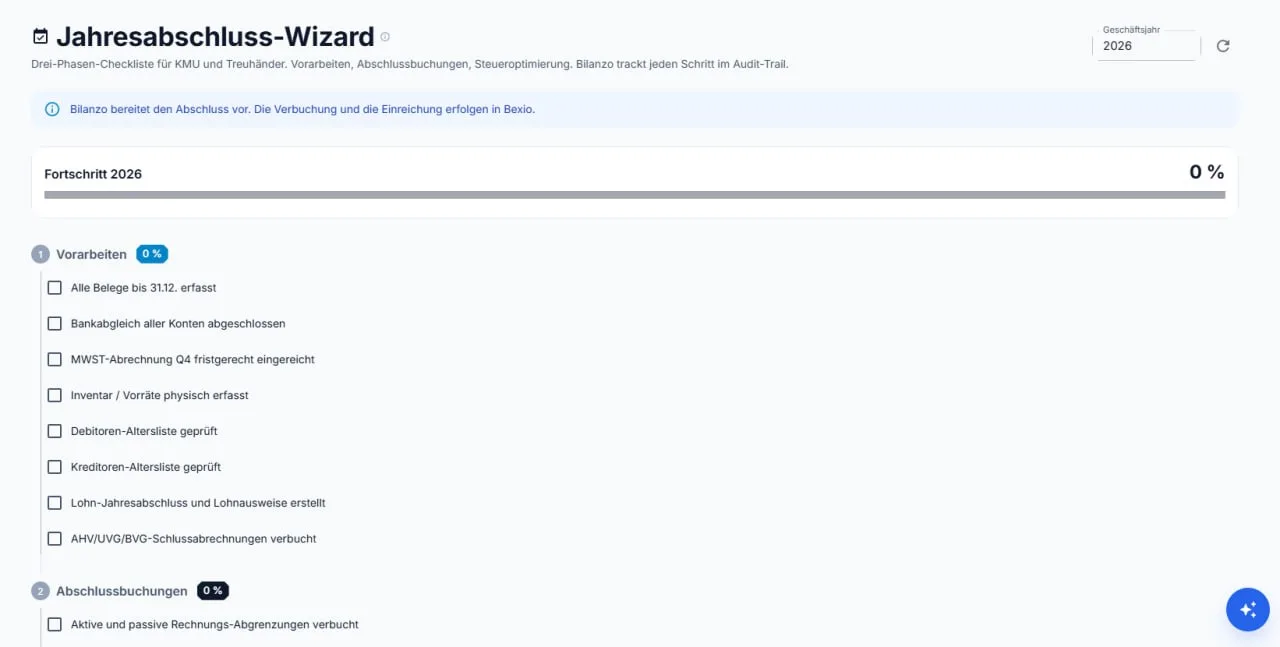
The year-end wizard walks you through the closing with a three-phase checklist: preparation (receipts, bank reconciliation, Q4 VAT, inventory, receivables/payables, payroll, AHV/UVG/BVG), closing entries (accruals and deferrals, for example) and tax optimisation.

Progress is tracked per financial year and every step lands in the audit trail.

Year-end wizard with three-phase checklist and progress indicator

AI features

How the artificial intelligence in Bilanzo works.

On your machine. The language model ships with the installation and runs locally. There is no call to any external AI provider, and your receipts never leave your device.

That is also why receipt recognition keeps working when the machine is offline.

Three, and automatic posting is switched off as delivered. You have to enable and acknowledge it explicitly.

  • Manual (the default on every plan): every receipt goes into the review queue and you click "post".
  • Semi-automatic (from Standard up): Bilanzo works receipt by receipt and puts every booking to you individually for confirmation. You can stop at any time. Nothing runs in the background.
  • Fully automatic (Professional only): Bilanzo posts without an intermediate stop, provided the receipt is above your confidence threshold. A daily ceiling and a maximum amount per booking act as hard brakes.
Automatic bank reconciliation is not part of this. It is not available and its switch cannot be turned on.

The AI evaluates:

  • supplier name and UID
  • the description text on the receipt
  • amount and VAT shown
  • your previous entries for the same supplier

From that it determines the most likely account together with a confidence score. Entries with a low confidence score are flagged for confirmation.

Yes. Every manual correction is stored locally in your installation and improves the suggestions for future receipts from the same supplier. What is learned stays with you.

The base model that ships with the product is maintained by us and refreshed with an update.

Printed text is recognised reliably. Handwriting is recognised too, but with a lower confidence score. Recommendation: prefer typed or printed receipts.

Thermal-printed till slips are recognised well.

Receipts in German, French, Italian and English are recognised. That covers the invoices that typically come up in Switzerland.

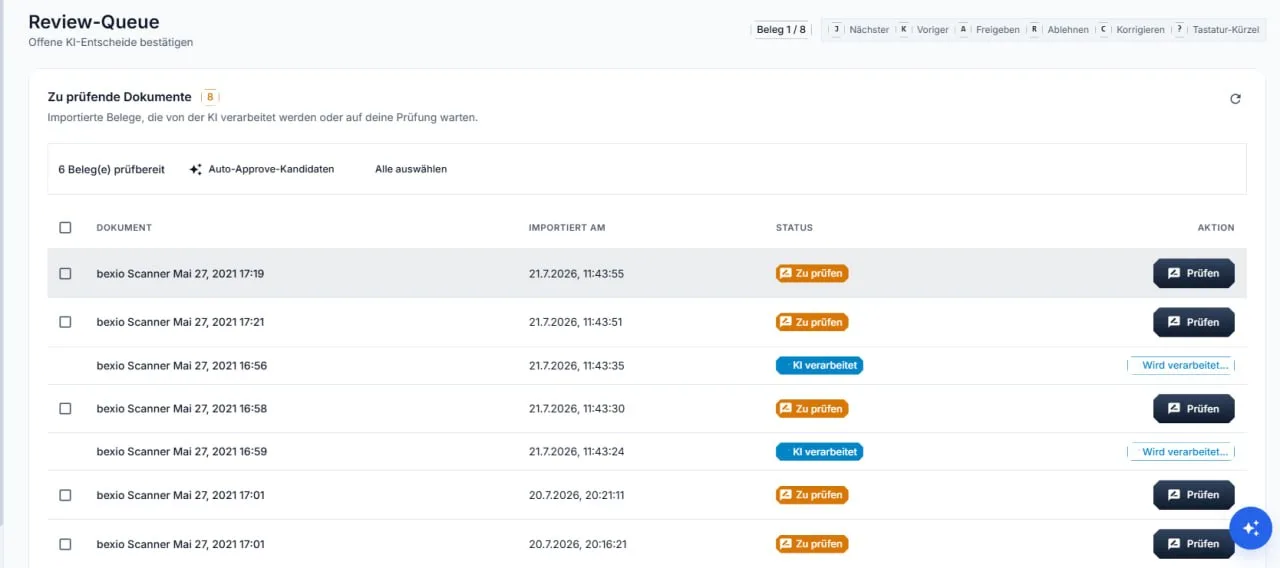
In the review queue you confirm pending AI decisions: receipts that have been processed and are waiting for your check. High-confidence receipts are proposed as approval candidates.

Keyboard shortcuts make this fast: J next receipt, K previous, A approve, R reject, C correct.

Review queue with pending AI decisions and keyboard shortcuts

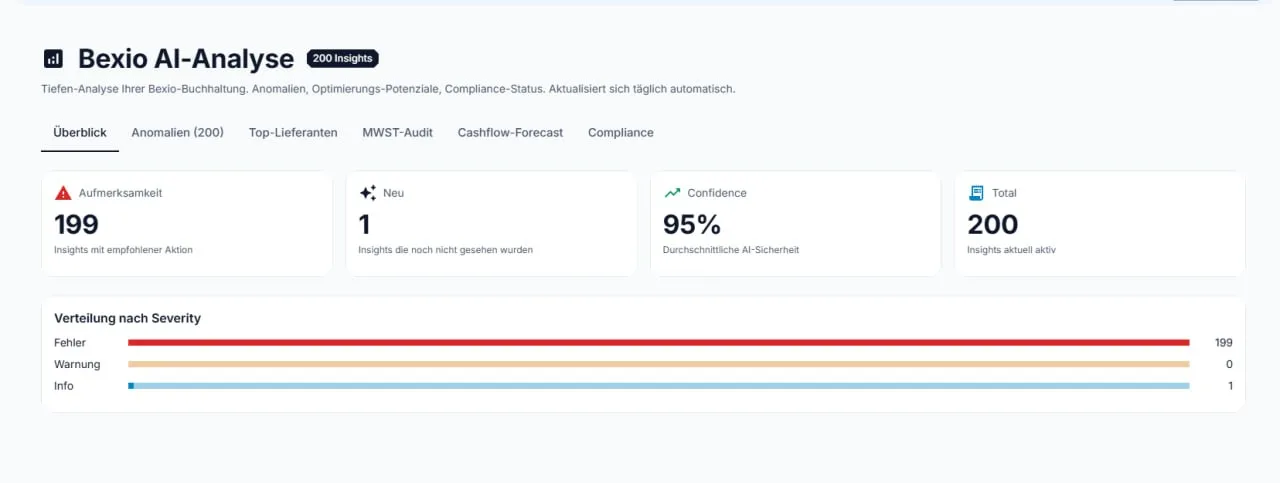
The bexio AI analysis is a deep analysis of your bexio books that refreshes daily. It delivers findings in six areas: overview, anomalies, top suppliers, VAT audit, cash-flow forecast and compliance.

Every finding carries a confidence score and a concrete recommendation; compliance notes cite the legal basis, for example art. 957a CO.

This analysis requires a connected bexio integration.

bexio AI analysis with overview and distribution of findings

Export & import

Data in and out.

Bilanzo exports:

  • PDF: receipts, reports, VAT returns, annual accounts
  • XLSX / CSV: journal, account sheets, analyses
  • CAMT.053: bank statements
  • PAIN.001: payment instructions
  • ZIP: all receipts as an audit-proof archive package

Bilanzo imports:

  • the journal as CSV (with column mapping)
  • payable and receivable lists as CSV
  • bank statements as CAMT.053 and MT940

For individual migrations the support team is available: [email protected].

Yes, at any time. Under Settings > Privacy > Export all data you get a complete archive (ZIP) of all receipts, entries and settings.

On top of that comes the audit-proof eArchive package per financial year. Both live on your own device.

GetMyInvoices is a service that collects invoices from your online portals, for example from telecoms providers, hosters or suppliers. Bilanzo fetches those invoices and puts them into the review queue as receipts, instead of you downloading them one by one.

Setting it up is offered on the Professional plan. You need your own GetMyInvoices account; the credentials are stored encrypted inside your installation.

Account & subscription

Prices, cancellation and account administration.

Two, plus the free trial:

  • Standard, CHF 199 per month: up to 3 clients, one user, manual and semi-automatic posting
  • Professional, CHF 299 per month: up to 10 clients, up to 5 users, plus fully automatic posting, ePost and Amnis, and priority support

Each client above that number costs CHF 50 per month.

On an annual subscription the plans cost CHF 1'990 and CHF 2'990. That amounts to two months free.

All prices and features at bilanzo.ch/#preise.

The bookkeeping itself is identical in both: same receipt processing, same chart of accounts, same VAT returns, same annual accounts, same eArchive.

Professional adds:

  • Fully automatic posting. Standard works manually or semi-automatically with confirmation per entry.
  • Up to 10 clients instead of up to 3.
  • Up to 5 users instead of one.
  • ePost and Amnis as integrations, plus the GetMyInvoices setup.
  • Priority support.

If you keep the books for your own company alone and want to see every entry anyway, Standard is right. If you run several clients or work in a team, you need Professional.

CHF 50 per client and month, once you exceed the number included in your plan: 3 clients on Standard, 10 on Professional.

An additional client brings a separate set of books of its own, with its own receipts, accounts, VAT returns and reports.

Monthly or annually, by credit card or direct debit. Invoices arrive by e-mail.

Annual subscriptions are invoiced in full at the start of the term.

At any time under Account > Subscription > Cancel. The subscription runs to the end of the period you have paid for. There is no minimum term.

Your data stays where it is: on your device. We delete nothing, because we do not hold your books in the first place.

Once the paid period ends, Bilanzo locks access to the application. The database and the receipts remain in your installation.

So take the data out before the end, while access is still open:

  1. Settings > Privacy > Export all data for the complete ZIP archive
  2. the eArchive package per financial year, audit-proof with checksums
  3. the reports you need, as PDF and XLSX

That covers your ten-year retention duty under art. 958f CO, regardless of the subscription.

The key to an encrypted backup is bound to the device. A backup file on its own, without this machine, can no longer be opened. So put the open exports (PDF, XLSX, ZIP) aside as well.

Yes. Fiduciaries and accountants get special terms and can offer Bilanzo to their clients. Details at /treuhand/.

Your own branding (whitelabel) is available to installations with a fiduciary profile.

Yes. Under Account > User administration you change the account holder or add further users. For a transfer to a different e-mail address contact [email protected].

Privacy & security

Encryption, data storage and the legal basis.

On your own machine. Bilanzo Local is installed and run at your premises. Receipts, entries, client data and the AI analysis live exclusively in the local database of your installation. There is no Bilanzo data centre holding your books.

These connections leave your device, and only these: the licence check, the update query, support requests you raise yourself, and the official daily rates and legal sources from estv.admin.ch, bazg.admin.ch and fedlex.admin.ch. In addition, and only if you explicitly connect them: bexio, ePost, GetMyInvoices and Amnis.

Your receipts go to no external AI provider. The language model runs on your device.

Bilanzo uses the following encryption:

  • In transit: HTTPS, TLS 1.2 as a minimum, TLS 1.3 where the client supports it. Bilanzo additionally checks the server certificate against a pinned fingerprint; a broken-open channel, such as some virus scanners produce, is detected this way.
  • Local vault: credentials for bexio, ePost and GetMyInvoices as well as the model weights are stored with AES-256-GCM, under a key bound to your device. The vault cannot be opened on another machine.
  • Backups: in an encrypted AES-256-GCM container.
  • Client separation: at database level via row level security. No client sees another one’s data.

The bookkeeping database itself is stored unencrypted in your installation; please use BitLocker to encrypt the drive.

Bilanzo is built for both frameworks:

  • the Swiss Data Protection Act (revDSG, in force since 1 September 2023)
  • the EU GDPR (for customers resident in the EU or with EU business partners)

The starting point helps: because the books never leave your device, there is no processing of the receipt data by us.

A template data processing agreement is available at /dpa.

Bilanzo backs up by itself, and you can also back up at any time.

  • A backup runs automatically daily and additionally weekly. Both are on out of the box.
  • Under Settings > Backup you create a backup by hand, download it, verify it and restore it if needed.
  • A backup contains the database, the receipt files and the client’s settings, encrypted in a container.
If the backups sit in the same folder as the bookkeeping, a failing disk takes both. Put the backup directory on a different drive. Bilanzo points this out in the interface while that is not the case.
The key to a backup is bound to this machine. In case the machine is lost, also take the eArchive package and the PDF reports with you.

Bilanzo Local runs on your device and has no central account through which a password could be reset. So keep the credentials from the setup wizard somewhere safe.

If you have lost them, contact [email protected]; recovery runs through the setup wizard again and requires access to the machine.

The password for your customer account on bilanzo.ch is separate and can be reset there as usual.

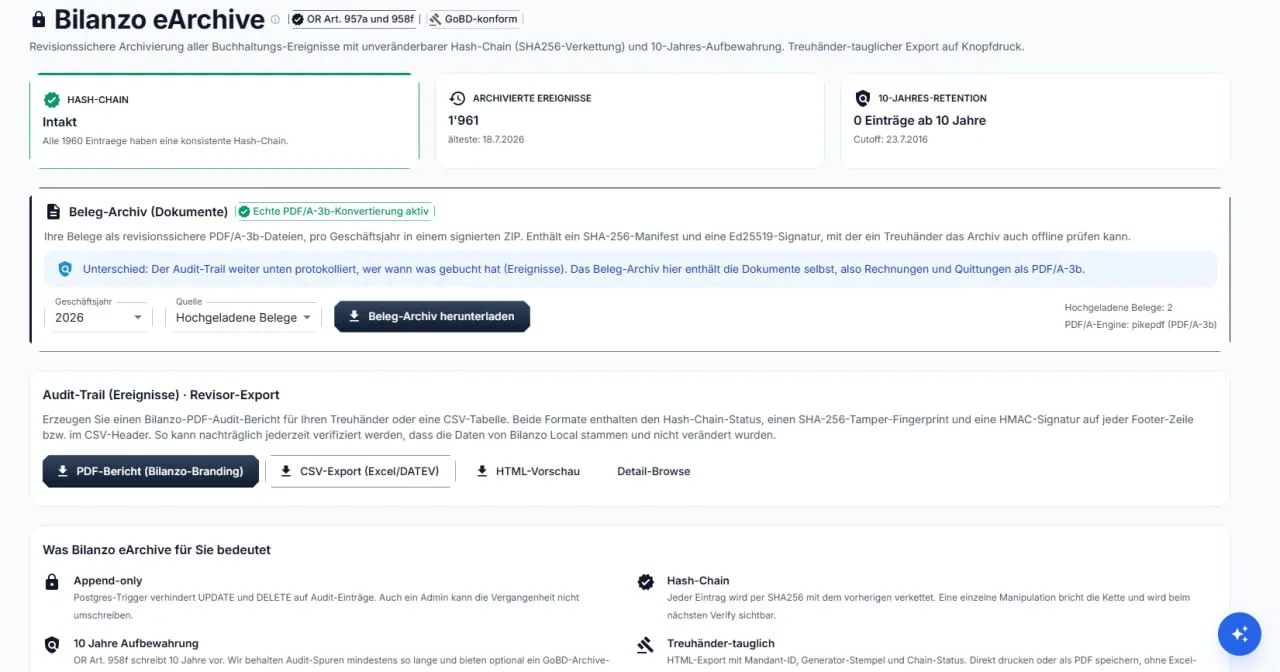
Bilanzo eArchive records every bookkeeping event in an audit-proof way under art. 957a and 958f CO:

  • Append only: changing or deleting audit trail entries afterwards is technically prevented, administrators included
  • Hash chain: each entry is chained to the previous one with SHA-256, so tampering breaks the chain visibly
  • Receipt archive: receipts as PDF/A-3b, per financial year in a signed ZIP with a SHA-256 manifest and an Ed25519 signature
  • Ten-year retention under art. 958f CO

For the audit you export a PDF audit report or a CSV table at the press of a button, both with a checksum and a signature. A fiduciary can verify the archive offline with it.

Bilanzo eArchive with intact hash chain, PDF/A-3b receipt archive and auditor export

System requirements

What you need in order to run Bilanzo.

  • Windows: Windows 10 (build 1809 or newer) or Windows 11, 64-bit in each case
  • macOS: in progress, no download available yet
  • Linux: not supported

Minimum:

  • 8 GB of RAM
  • Windows 10 build 1809 or Windows 11, 64-bit
  • around 25 GB free on the drive you install to, plus around 9 GB on the system drive C:
  • internet access on first launch and for the licence check

Recommended:

  • 16 GB of RAM or more
  • an SSD rather than a hard disk
  • Full HD or higher resolution
Read the two space figures separately. Even installing to D: still needs the space on C: on top; an installation has already failed over this.

On first launch Bilanzo picks a runtime profile based on the installed memory. With 8 to 16 GB the frugal profile runs: Bilanzo works fully, but releases the language model between jobs, which makes the first receipt after a pause take a little longer. From 16 GB the full profile runs.

Receipt recognition, the posting suggestions and the entire bookkeeping run locally and need no internet. A connection is required for:

  • the licence check
  • refreshing the official daily exchange rates
  • updates
  • the optional integrations (bexio, ePost, GetMyInvoices, Amnis)

The licence check reports in every 15 minutes. If the connection drops, Bilanzo carries on: after 1 hour the AI features go quiet, after 2 hours Bilanzo is read-only, after 4 hours access is locked until the connection is back.

Bilanzo asks updates.bilanzo.ch once a day whether a new version exists. What happens next is up to you, under Settings > Updates:

  • Ask at startup (the default): Bilanzo reports the new version and asks whether to fetch it
  • Manual: Bilanzo says nothing, you decide yourself
  • Download in the background: the package is fetched, but only installed on your word
  • Install at next start: runs without asking, with a short window to cancel

The downloaded package is checked against its SHA-256 checksum before anything is replaced. It is applied at the next start: close Bilanzo, start it again, done. If something goes wrong, the previous version can be restored.

The package is several gigabytes. How long the download takes depends on your line; we deliberately do not quote a fixed figure. Your bookkeeping, your settings and what the model has learned survive the update.

Troubleshooting

Common problems and how to solve them.

Type http://localhost:3100 by hand. If the page stays empty, wait a minute: on the first start Bilanzo sets up its services, and that takes a while.

If that does not help:

  1. Check that the launcher window is still open and working
  2. Close Bilanzo and start it again
  3. If the launcher reports that port 3100 is taken, it names the address the interface runs on instead. Use that one.

Usually it is the address. The session cookie applies exactly to the origin you signed in under.

  1. Open the interface at http://localhost:3100 again, not under another name and not via the IP address
  2. Sign in there once more
If it is about "Sign in with bexio", bexio is usually simply not set up. Sign in with e-mail and password; bexio can be connected later in the settings.

Common causes:

  • image quality too low (below 150 dpi)
  • the receipt is badly skewed or crumpled
  • a very unusual typeface

Remedies:

  1. Rescan the receipt at 200 dpi or better
  2. Lay it straight on the glass
  3. Upload it as PDF rather than JPG

Correct the receipt by hand afterwards. The correction is learned and applies to the next receipts from the same supplier.

Cause A: the trial is used up (100 receipts). Remedy: take out a subscription.

Cause B: the paid subscription counts as expired in the system. Remedy: check the status under My account.

Cause C: the machine has been offline for too long. The licence check reports in every 15 minutes; after 4 hours without a connection access is locked. Remedy: restore the connection and access opens again.

If it persists: [email protected].

What to do:

  1. Check the internet connection
  2. VPN and firewall: outgoing connections on port 443 (HTTPS) must be allowed
  3. Virus scanners that break open HTTPS: Bilanzo detects the broken-open channel and refuses it. Exempt Bilanzo in the scanner.
  4. Restart Bilanzo
Bilanzo does not synchronise your bookkeeping to any cloud. Only the optional integrations and the licence check are affected here.

What to do:

  1. Export as PDF instead of printing directly
  2. Open the PDF in a different viewer
  3. Check whether the entries for that period are complete
  4. For reports, check the date range for completeness

Write to [email protected] and describe what you did and what happened.

If that is not enough, we arrange a session in which you show us your screen. We name the appointment and the tool for it in our reply to your request, never unprompted.

We do not call you out of the blue and never ask over the phone for remote access, for a password or for a payment. If you receive such a call or e-mail, do not engage with it and let us know.

Interfaces

Connecting to other systems.

An open REST API with its own access keys is not available today.

Bilanzo ships ready-made integrations: bexio, ePost, GetMyInvoices, Amnis, plus bank data exchange via CAMT.053, MT940 and PAIN.001.

If you need a connection to a further system, write to [email protected].

Webhooks are not available today.

For exchange with other systems, use the ready-made integrations (bexio, ePost, GetMyInvoices, Amnis) or bank data exchange via CAMT.053, MT940 and PAIN.001.

An open interface for arbitrary third-party systems does not exist today.

bexio, ePost, GetMyInvoices and Amnis are connected out of the box. The file route is open: CSV for the journal, CAMT.053 and MT940 for bank statements, PAIN.001 for payment instructions.

For a further connection write to [email protected].

Sign-in to the interface runs on an HttpOnly session cookie with a 12-hour lifetime. If you keep working it renews automatically; an idle session expires after 12 hours.

Because there is no public API, there are also no API tokens that could be lost.

Online-Hilfe

Hilfe & Dokumentation

💰 Buchhaltungsfragen

Hilfe zu Buchungen, Belegen und Auswertungen für Ihre tägliche Buchhaltungsarbeit.

🔧 Technische Probleme

Lösungen für Software-Probleme, Fehlermeldungen und technische Herausforderungen.

📄 Rechnungsfragen

Unterstützung bei Rechnungen, Zahlungen und Mahnwesen für optimale Liquidität.

📊 Auswertungen

Hilfe bei Reports, Statistiken und betriebswirtschaftlichen Auswertungen.

🔐 Zugangsprobleme

Anmeldung, Zugänge für Mitarbeitende und Benutzerrechte.

📚 Schulungen

Informationen zu Schulungen, Webinaren und Lernmaterialien.

🎯 Best Practices

Tipps und Tricks für die effiziente Nutzung der Software.

🔄 Updates & Neuerungen

Informationen zu neuen Funktionen und Verbesserungen.

Direkter Kontakt

📧 [email protected]

📞 +41 XX XXX XX XX

🕒 Mo-Fr: 8:00-17:00 Uhr

Häufige Fragen

Antworten auf häufige Fragen

Wie erstelle ich ein Support-Ticket?
Klicken Sie auf "Neues Ticket" und füllen Sie das Formular mit Ihren Angaben aus. Beschreiben Sie Ihr Problem möglichst detailliert, damit wir Ihnen optimal helfen können.
Wie lange dauert die Bearbeitung?
Die durchschnittliche Bearbeitungszeit beträgt 24-48 Stunden. Dringende Anfragen werden priorisiert behandelt. Sie erhalten eine Benachrichtigung, sobald Ihr Ticket bearbeitet wird.
Kann ich den Status meines Tickets verfolgen?
Ja, unter "Meine Tickets" können Sie jederzeit den aktuellen Status Ihrer Anfragen einsehen. Sie sehen dort auch die Bearbeitungshistorie und können zusätzliche Informationen hinzufügen.
Welche Informationen sollte ich bereitstellen?
Je mehr Details Sie angeben, desto schneller können wir helfen. Screenshots, Fehlermeldungen und eine genaue Beschreibung des Problems sind sehr hilfreich. Geben Sie auch an, welche Schritte Sie bereits unternommen haben.
Wie kann ich mein Ticket aktualisieren?
Öffnen Sie "Meine Tickets", wählen Sie das entsprechende Ticket aus und fügen Sie einen Kommentar hinzu. Unser Support-Team wird automatisch benachrichtigt.
Was sind die Support-Zeiten?
Unser Support-Team ist Montag bis Freitag von 8:00 bis 17:00 Uhr für Sie da. Ausserhalb dieser Zeiten können Sie jederzeit ein Ticket erstellen, das am nächsten Werktag bearbeitet wird.

Neues Support-Ticket

Support-Anfrage erstellen

Wählen Sie die passende Kategorie für Ihr Anliegen
Geben Sie einen aussagekräftigen Betreff ein
Je detaillierter Ihre Beschreibung, desto besser können wir Ihnen helfen
Wählen Sie die Dringlichkeit Ihres Anliegens